
Table of Contents
Visual Studio Code Setup Guide
Simple, screenshot-driven steps to get VS Code set up. This guide is written for Windows and uses short steps, clear menu paths, and annotated images.
How to use this guide
- Menu paths are written like: File » New Window with Profile » New Profile…
- Keyboard keys use + signs: Ctrl + Shift + P
- Screenshots live in the
:vscode:namespace and include red arrows and labels - Each step includes 1–2 images with captions. Replace the placeholders with your screenshots.
1) Create a new VS Code profile
Why profiles? Profiles let you keep separate extensions, settings, and UI layout for different tasks (e.g., Python vs. Web). They’re easy to switch without changing your default setup.
Steps
- In VS Code, go to: File » New Window with Profile » New Profile…
- Choose
Create a new profile - Give it a name (e.g., “Web Dev” or “Python Data”)
- Select
copy from Nonefor an Empty profile with default settings - Click
Createand wait for the new window to open with that profile
Screenshots
Image A — Open the profile menu

Image B — Create new profile dialog

2) Turn on Settings Sync with GitHub
Sync keeps your settings, keybindings, extensions, UI state, and snippets consistent across devices.
Steps
- Go to: Manage (gear icon, bottom-left) » Turn on Settings Sync…
- Or press: Ctrl + Shift + P and run:
Settings Sync: Turn On
- Click
Sign in & Turn onand choose GitHub when prompted - Your browser opens to GitHub — authorize VS Code, then return to VS Code
- Pick what to sync (Settings, Keybindings, Extensions, UI State, Snippets) and confirm
- Verify the Accounts menu shows: Settings Sync is on
Screenshots
Image A — Turn on Settings Sync

- If you use multiple profiles, turn Sync on in the profile you want as your baseline.
- You can limit what gets synced (e.g., extensions only) in the turn-on dialog.
3) Install and sign in to GitHub Copilot
Copilot suggests code in real time. Requires a GitHub account and an active Copilot subscription (free for some users like students/teachers; see GitHub’s terms).
Steps
- Open Extensions: Ctrl + Shift + X, search:
GitHub Copilot(publisher: GitHub), then Install - After install, click
Sign in to GitHubif prompted; complete the browser auth flow and return to VS Code - Confirm Copilot is enabled (status icon appears in the status bar)
- Test: open a code file and start typing a comment; accept a suggestion with Tab
Screenshots
Image A — Install GitHub Copilot extension

- If you don’t see suggestions, ensure: View » Extensions » GitHub Copilot is Enabled.
- You can toggle Copilot per-language in the extension settings.
4) Explore Welcome and Walkthroughs
VS Code’s Welcome page includes built-in walkthroughs, like “Get started with VS Code”, guiding you through core features. Extensions can also contribute their own walkthroughs (for example: Python, Docker, GitHub Copilot), which show up alongside the built-in ones.
Steps
- Open the Welcome page: Help » Get Started
- Or press: Ctrl + Shift + P and run:
Welcome: Open Welcome Page
- Click
Get started with VS Codeand complete the mini-tasks (Open Folder, Run and Debug, Source Control, Terminal, etc.) - Optional: Keep showing the Welcome page at startup — Settings (Ctrl + ,) » Workbench » Startup Editor =
welcomePage
Screenshots
Image A — Welcome (Get Started) page
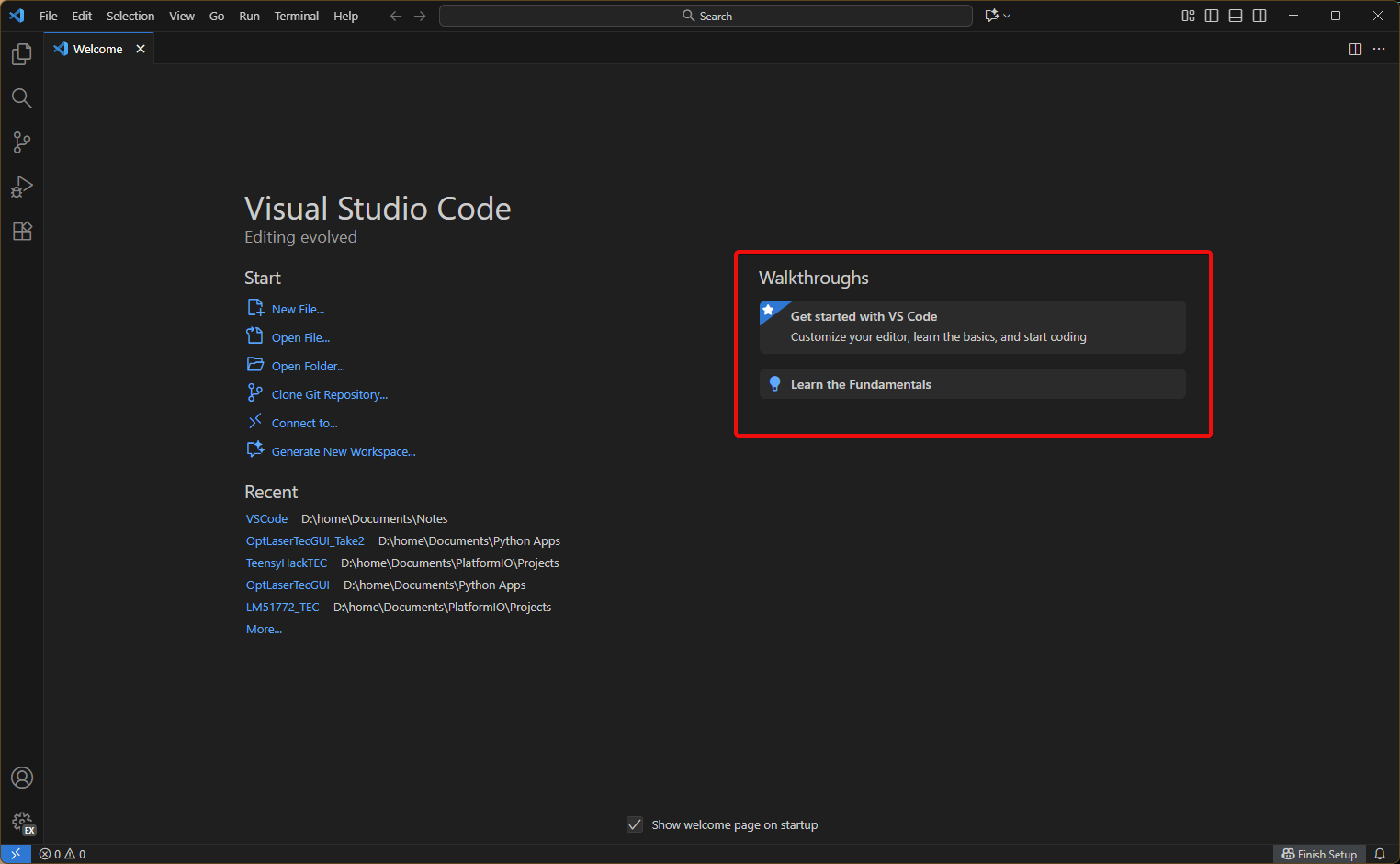
- Extensions add their own walkthroughs; after installing an extension, check Welcome. Tip: you can also open a specific one directly via Ctrl + Shift + P >
Welcome: Open Walkthrough…